Skip to content

Pre-configure Microsoft OAuth credentials#

After setting up a Microsoft Entra ID app registration with delegated access, you can use credential overwrites to inject the Client ID and Client Secret into n8n at startup. This means users in your organisation can connect to Microsoft services without completing their own OAuth app registration.

n8n supports three environment variables for credential overwrites. This guide uses CREDENTIALS_OVERWRITE_DATA_FILE. Refer to Credentials environment variables for the full variable reference.

Create the credentials file#

On the host running n8n, create a file named credentials-overwrite.json in the same directory as your docker-compose.yaml.

The file contains a JSON object keyed by the n8n credential type name. For example, to pre-configure Microsoft Outlook:

1
2
3
4
5
6
{
  "microsoftOutlookOAuth2Api": {
    "clientId": "YOUR_CLIENT_ID",
    "clientSecret": "YOUR_CLIENT_SECRET"
  }
}

To pre-configure multiple Microsoft services at once, add each credential type as a separate key:

 1
 2
 3
 4
 5
 6
 7
 8
 9
10
{
  "microsoftOutlookOAuth2Api": {
    "clientId": "YOUR_CLIENT_ID",
    "clientSecret": "YOUR_CLIENT_SECRET"
  },
  "microsoftOneDriveOAuth2Api": {
    "clientId": "YOUR_CLIENT_ID",
    "clientSecret": "YOUR_CLIENT_SECRET"
  }
}

Minified JSON

n8n requires the JSON to be minified (no spaces or newlines). The examples above are formatted for readability. Make sure your actual file contains no extra whitespace:

1
{"microsoftOutlookOAuth2Api":{"clientId":"YOUR_CLIENT_ID","clientSecret":"YOUR_CLIENT_SECRET"}}

Refer to Required scopes by integration for the credential type name of each Microsoft service.

Docker Compose#

Mount the credentials file as a read-only volume and set the environment variable in your compose.yaml:

 1
 2
 3
 4
 5
 6
 7
 8
 9
10
11
12
13
14
15
16
17
18
19
20
21
22
23
24
services:
  n8n:
    image: docker.n8n.io/n8nio/n8n:latest
    container_name: n8n
    restart: always
    ports:
      - "5678:5678"
    environment:
      - GENERIC_TIMEZONE=America/New_York
      - TZ=America/New_York
      - N8N_ENFORCE_SETTINGS_FILE_PERMISSIONS=true
      - N8N_LOG_LEVEL=debug
      - N8N_LOG_OUTPUT=file,console
      - N8N_LOG_FILE_COUNT_MAX=5
      - CREDENTIALS_OVERWRITE_DATA_FILE=/run/secrets/credentials-overwrite.json
    volumes:
      - n8n_data:/home/node/.n8n
      - ./credentials-overwrite.json:/run/secrets/credentials-overwrite.json:ro
    networks:
      - default
volumes:
  n8n_data:
    name: ${N8N_VOLUME:-n8n_data}
    external: true

Apply the changes by restarting the container:

1
docker compose up -d

Verify the overwrite is applied#

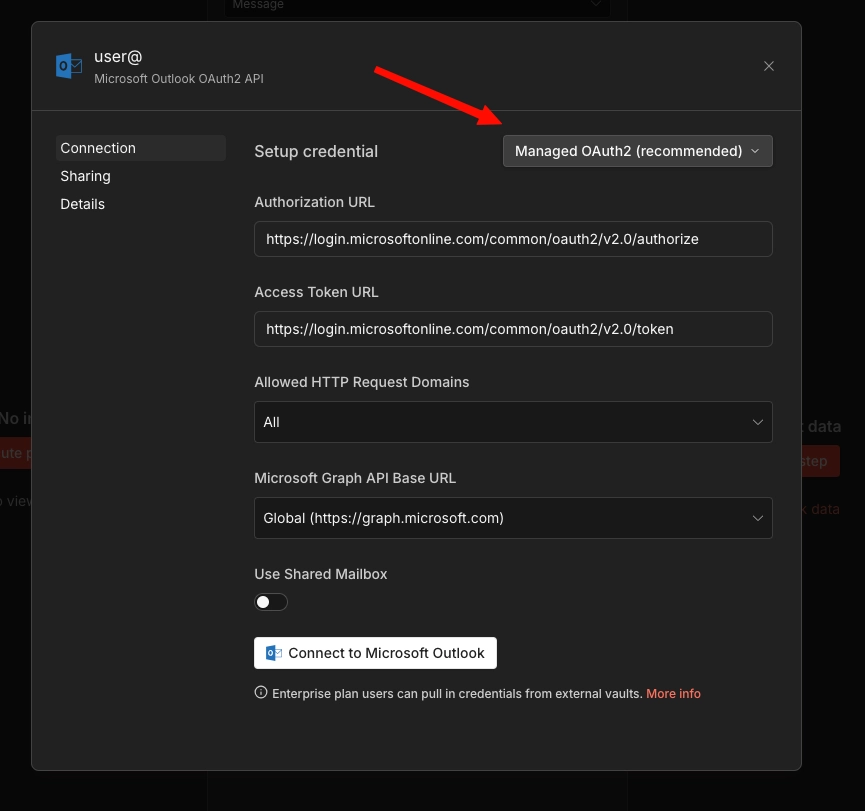
After n8n starts, have a user create a new credential for one of the pre-configured services (for example, Microsoft Outlook). They should see a Managed OAuth2 (recommended) option in the credential selection.

Microsoft Entra credentials screen

The user can click Connect to Microsoft Outlook, with no auth required. An Account connected message should appear

If the Managed OAuth 2 option doesn't appear, the environment variable wasn't applied correctly. Check that the file path in the volume mount matches the value of CREDENTIALS_OVERWRITE_DATA_FILE.

Kubernetes#

For Kubernetes deployments, replace the Docker volume mount with Kubernetes-native primitives. The approach differs by cloud provider. Choose the section that matches your environment.

Plain Kubernetes Secret (EKS / AKS / GKE)#

This approach works across all three managed Kubernetes providers without additional dependencies.

1. Create the Secret:

1
2
3
4
5
6
7
8
apiVersion: v1
kind: Secret
metadata:
  name: n8n-credentials-overwrite
  namespace: your-namespace
type: Opaque
stringData:
  credentials-overwrite.json: '{"microsoftOutlookOAuth2Api":{"clientId":"YOUR_CLIENT_ID","clientSecret":"YOUR_CLIENT_SECRET"}}'

2. Mount the Secret in your Deployment:

 1
 2
 3
 4
 5
 6
 7
 8
 9
10
11
12
13
14
15
16
17
spec:
  containers:
    - name: n8n
      image: docker.n8n.io/n8nio/n8n:latest
      env:
        - name: CREDENTIALS_OVERWRITE_DATA_FILE
          value: /run/secrets/credentials-overwrite.json
        # ...your other env vars
      volumeMounts:
        - name: credentials-overwrite
          mountPath: /run/secrets/credentials-overwrite.json
          subPath: credentials-overwrite.json
          readOnly: true
  volumes:
    - name: credentials-overwrite
      secret:
        secretName: n8n-credentials-overwrite

The subPath field is important. Without it, Kubernetes replaces the entire /run/secrets/ directory rather than mounting just the single file.

Alternative: inline environment variable

To skip the volume mount entirely, reference the Secret directly as an environment variable:

1
2
3
4
5
6
env:
  - name: CREDENTIALS_OVERWRITE_DATA
    valueFrom:
      secretKeyRef:
        name: n8n-credentials-overwrite
        key: credentials-overwrite.json
1
2
stringData:
  credentials-json: '{"microsoftOutlookOAuth2Api":{"clientId":"...","clientSecret":"..."}}'

This is cleaner for single-service setups, but note that some Kubernetes environments restrict environment variable size (for example, to 128KB per variable). The file-based approach is safer if you have many credential overwrites.

AWS Secrets Manager (EKS)#

This approach uses the AWS Secrets Store CSI Driver to mount a secret from AWS Secrets Manager directly into the pod. It adds rotation support, CloudTrail audit logging, and centralised secret management.

Prerequisites:

  • Secrets Store CSI Driver and ASCP (AWS Secrets and Configuration Provider) installed on the cluster
  • IAM OIDC provider configured for the cluster (required for IRSA)
  • An IAM role with secretsmanager:GetSecretValue and secretsmanager:DescribeSecret permissions

1. Create the secret in AWS Secrets Manager:

1
2
3
4
aws secretsmanager create-secret \
  --name n8n/credentials-overwrite \
  --description "n8n credential overwrites for Microsoft OAuth" \
  --secret-string '{"microsoftOutlookOAuth2Api":{"clientId":"YOUR_CLIENT_ID","clientSecret":"YOUR_CLIENT_SECRET"}}'

2. Create an IAM policy:

 1
 2
 3
 4
 5
 6
 7
 8
 9
10
11
12
13
{
  "Version": "2012-10-17",
  "Statement": [
    {
      "Effect": "Allow",
      "Action": [
        "secretsmanager:GetSecretValue",
        "secretsmanager:DescribeSecret"
      ],
      "Resource": "arn:aws:secretsmanager:REGION:ACCOUNT_ID:secret:n8n/credentials-overwrite-*"
    }
  ]
}
1
2
3
aws iam create-policy \
  --policy-name n8n-credentials-overwrite-read \
  --policy-document file://policy.json

3. Create a service account with IRSA:

1
2
3
4
5
6
eksctl create iamserviceaccount \
  --name n8n-sa \
  --namespace your-namespace \
  --cluster your-cluster \
  --attach-policy-arn arn:aws:iam::ACCOUNT_ID:policy/n8n-credentials-overwrite-read \
  --approve

4. Create the SecretProviderClass:

 1
 2
 3
 4
 5
 6
 7
 8
 9
10
11
12
apiVersion: secrets-store.csi.x-k8s.io/v1
kind: SecretProviderClass
metadata:
  name: n8n-credentials-overwrite
  namespace: your-namespace
spec:
  provider: aws
  parameters:
    objects: |
      - objectName: "n8n/credentials-overwrite"
        objectType: "secretsmanager"
        objectAlias: "credentials-overwrite.json"

5. Update your n8n Deployment:

 1
 2
 3
 4
 5
 6
 7
 8
 9
10
11
12
13
14
15
16
17
18
19
20
21
22
23
24
25
26
27
apiVersion: apps/v1
kind: Deployment
metadata:
  name: n8n
  namespace: your-namespace
spec:
  template:
    spec:
      serviceAccountName: n8n-sa
      containers:
        - name: n8n
          image: docker.n8n.io/n8nio/n8n:latest
          env:
            - name: CREDENTIALS_OVERWRITE_DATA_FILE
              value: /run/secrets/credentials-overwrite.json
          volumeMounts:
            - name: credentials-overwrite
              mountPath: /run/secrets/credentials-overwrite.json
              subPath: credentials-overwrite.json
              readOnly: true
      volumes:
        - name: credentials-overwrite
          csi:
            driver: secrets-store.csi.k8s.io
            readOnly: true
            volumeAttributes:
              secretProviderClass: n8n-credentials-overwrite

Rotating the secret:

To update the credentials, update the value in Secrets Manager:

1
2
3
aws secretsmanager update-secret \
  --secret-id n8n/credentials-overwrite \
  --secret-string '{"microsoftOutlookOAuth2Api":{"clientId":"NEW_CLIENT_ID","clientSecret":"NEW_CLIENT_SECRET"}}'

The CSI driver syncs the updated value on its polling interval (default two minutes). Restart the n8n pod for n8n to read the updated file, as n8n reads the credentials file at startup.

Azure Key Vault (AKS)#

This approach uses the Azure Key Vault Provider for the Secrets Store CSI Driver to mount secrets from Azure Key Vault into the pod.

Prerequisites:

  • Secrets Store CSI Driver and Azure Key Vault Provider addon enabled on the AKS cluster
  • An Azure Key Vault instance
  • A managed identity or service principal with access to the vault
  • Workload Identity enabled on the cluster (recommended over pod identity)

1. Create or use an existing Key Vault:

1
2
3
4
az keyvault create \
  --name n8n-credentials-vault \
  --resource-group your-resource-group \
  --location your-region

2. Create the secret in Key Vault:

1
2
3
4
az keyvault secret set \
  --vault-name n8n-credentials-vault \
  --name n8n-credentials-overwrite \
  --value '{"microsoftOutlookOAuth2Api":{"clientId":"YOUR_CLIENT_ID","clientSecret":"YOUR_CLIENT_SECRET"}}'

3. Set up Workload Identity:

Create a managed identity and establish the federated credential:

 1
 2
 3
 4
 5
 6
 7
 8
 9
10
11
12
13
14
15
16
17
18
19
20
21
22
23
24
25
26
27
28
29
30
31
# Create a managed identity
az identity create \
  --name n8n-workload-identity \
  --resource-group your-resource-group \
  --location your-region

# Get the identity client ID
CLIENT_ID=$(az identity show \
  --name n8n-workload-identity \
  --resource-group your-resource-group \
  --query clientId -o tsv)

# Grant the identity access to the Key Vault
az keyvault set-policy \
  --name n8n-credentials-vault \
  --secret-permissions get \
  --spn "$CLIENT_ID"

# Get the OIDC issuer URL for your cluster
OIDC_ISSUER=$(az aks show \
  --name your-cluster \
  --resource-group your-resource-group \
  --query "oidcIssuerProfile.issuerUrl" -o tsv)

# Create the federated credential
az identity credential create \
  --name n8n-workload-identity \
  --resource-group your-resource-group \
  --issuer "$OIDC_ISSUER" \
  --subject system:serviceaccount:your-namespace:n8n-sa \
  --audience api://AzureADTokenExchange

4. Create the Kubernetes ServiceAccount:

1
2
3
4
5
6
7
8
9
apiVersion: v1
kind: ServiceAccount
metadata:
  name: n8n-sa
  namespace: your-namespace
  annotations:
    azure.workload.identity/client-id: "YOUR_MANAGED_IDENTITY_CLIENT_ID"
  labels:
    azure.workload.identity/use: "true"

5. Create the SecretProviderClass:

 1
 2
 3
 4
 5
 6
 7
 8
 9
10
11
12
13
14
15
16
17
18
19
apiVersion: secrets-store.csi.x-k8s.io/v1
kind: SecretProviderClass
metadata:
  name: n8n-credentials-overwrite
  namespace: your-namespace
spec:
  provider: azure
  parameters:
    usePodIdentity: "false"
    useWorkloadIdentity: "true"
    clientID: "YOUR_MANAGED_IDENTITY_CLIENT_ID"
    keyvaultName: "n8n-credentials-vault"
    objects: |
      array:
        - |
          objectName: n8n-credentials-overwrite
          objectType: secret
          objectAlias: credentials-overwrite.json
    tenantId: "YOUR_TENANT_ID"

6. Update your n8n Deployment:

 1
 2
 3
 4
 5
 6
 7
 8
 9
10
11
12
13
14
15
16
17
18
19
20
21
22
23
24
25
26
27
apiVersion: apps/v1
kind: Deployment
metadata:
  name: n8n
  namespace: your-namespace
spec:
  template:
    spec:
      serviceAccountName: n8n-sa
      containers:
        - name: n8n
          image: docker.n8n.io/n8nio/n8n:latest
          env:
            - name: CREDENTIALS_OVERWRITE_DATA_FILE
              value: /run/secrets/credentials-overwrite.json
          volumeMounts:
            - name: credentials-overwrite
              mountPath: /run/secrets/credentials-overwrite.json
              subPath: credentials-overwrite.json
              readOnly: true
      volumes:
        - name: credentials-overwrite
          csi:
            driver: secrets-store.csi.k8s.io
            readOnly: true
            volumeAttributes:
              secretProviderClass: n8n-credentials-overwrite

Rotating the secret:

1
2
3
4
az keyvault secret set \
  --vault-name n8n-credentials-vault \
  --name n8n-credentials-overwrite \
  --value '{"microsoftOutlookOAuth2Api":{"clientId":"NEW_CLIENT_ID","clientSecret":"NEW_CLIENT_SECRET"}}'

The CSI driver syncs on its polling interval (default two minutes). Restart the n8n pod afterward for n8n to pick up the updated file.

Google Secret Manager (GKE)#

This approach uses the GCP provider for the Secrets Store CSI Driver to mount secrets from Google Secret Manager into the pod.

Prerequisites:

  • A GKE cluster with Workload Identity Federation enabled
  • The Secret Manager API enabled on the project
  • A Google service account with the secretmanager.secretAccessor role

1. Enable the Secret Manager API:

1
2
gcloud services enable secretmanager.googleapis.com \
  --project your-project-id

2. Create the secret:

1
2
3
4
echo -n '{"microsoftOutlookOAuth2Api":{"clientId":"YOUR_CLIENT_ID","clientSecret":"YOUR_CLIENT_SECRET"}}' | \
  gcloud secrets create n8n-credentials-overwrite \
    --data-file=- \
    --project your-project-id

3. Set up Workload Identity Federation:

 1
 2
 3
 4
 5
 6
 7
 8
 9
10
11
12
13
14
15
16
# Create a Google service account
gcloud iam service-accounts create n8n-secret-reader \
  --display-name="n8n Secret Reader" \
  --project your-project-id

# Grant it access to the secret
gcloud secrets add-iam-policy-binding n8n-credentials-overwrite \
  --member="serviceAccount:n8n-secret-reader@your-project-id.iam.gserviceaccount.com" \
  --role="roles/secretmanager.secretAccessor" \
  --project your-project-id

# Bind the Kubernetes service account to the Google service account
gcloud iam service-accounts add-iam-policy-binding \
  n8n-secret-reader@your-project-id.iam.gserviceaccount.com \
  --role="roles/iam.workloadIdentityUser" \
  --member="serviceAccount:your-project-id.svc.id.goog[your-namespace/n8n-sa]"

4. Create the Kubernetes ServiceAccount:

1
2
3
4
5
6
7
apiVersion: v1
kind: ServiceAccount
metadata:
  name: n8n-sa
  namespace: your-namespace
  annotations:
    iam.gke.io/gcp-service-account: n8n-secret-reader@your-project-id.iam.gserviceaccount.com

5. Install the CSI Driver and GCP provider:

1
2
3
4
5
6
7
# Install the CSI driver
helm repo add secrets-store-csi-driver https://kubernetes-sigs.github.io/secrets-store-csi-driver/charts
helm install csi-secrets-store secrets-store-csi-driver/secrets-store-csi-driver \
  --namespace kube-system

# Install the GCP provider
kubectl apply -f https://raw.githubusercontent.com/GoogleCloudPlatform/secrets-store-csi-driver-provider-gcp/main/deploy/provider-gcp-plugin.yaml

6. Create the SecretProviderClass:

 1
 2
 3
 4
 5
 6
 7
 8
 9
10
11
apiVersion: secrets-store.csi.x-k8s.io/v1
kind: SecretProviderClass
metadata:
  name: n8n-credentials-overwrite
  namespace: your-namespace
spec:
  provider: gcp
  parameters:
    secrets: |
      - resourceName: "projects/your-project-id/secrets/n8n-credentials-overwrite/versions/latest"
        path: "credentials-overwrite.json"

7. Update your n8n Deployment:

 1
 2
 3
 4
 5
 6
 7
 8
 9
10
11
12
13
14
15
16
17
18
19
20
21
22
23
24
25
26
27
apiVersion: apps/v1
kind: Deployment
metadata:
  name: n8n
  namespace: your-namespace
spec:
  template:
    spec:
      serviceAccountName: n8n-sa
      containers:
        - name: n8n
          image: docker.n8n.io/n8nio/n8n:latest
          env:
            - name: CREDENTIALS_OVERWRITE_DATA_FILE
              value: /run/secrets/credentials-overwrite.json
          volumeMounts:
            - name: credentials-overwrite
              mountPath: /run/secrets/credentials-overwrite.json
              subPath: credentials-overwrite.json
              readOnly: true
      volumes:
        - name: credentials-overwrite
          csi:
            driver: secrets-store.csi.k8s.io
            readOnly: true
            volumeAttributes:
              secretProviderClass: n8n-credentials-overwrite

Rotating the secret:

Create a new version of the secret:

1
2
3
4
echo -n '{"microsoftOutlookOAuth2Api":{"clientId":"NEW_CLIENT_ID","clientSecret":"NEW_CLIENT_SECRET"}}' | \
  gcloud secrets versions add n8n-credentials-overwrite \
    --data-file=- \
    --project your-project-id

Because the SecretProviderClass references versions/latest, the CSI driver picks up the new version on its next sync. Restart the n8n pod for n8n to read the updated file.
This page was