HubSpot credentials#
You can use these credentials to authenticate the following nodes:
Supported authentication methods#
- Service key (recommended): Use with the HubSpot node.
- Developer API key: Use with the HubSpot Trigger node.
- OAuth2: Use with the HubSpot node.
API key deprecated
HubSpot deprecated the regular API Key authentication method. The option still appears in n8n, but you should use the authentication methods listed above instead. If you have existing integrations using this API key method, refer to HubSpot's Migrate an API key integration to a private app guide and set up a service key.
UI based private apps are now legacy
HubSpot has moved private apps created in the UI to legacy status. If you're using a private app access token from this type of app, HubSpot recommends using a service key instead. Refer to HubSpot's Private Apps documentation for more information.
Related resources#
Refer to HubSpot's API documentation for more information about the service. The HubSpot Trigger node uses the Webhooks API; refer to HubSpot's Webhooks API documentation for more information about that service.
Using Service Key#
To configure this credential, you'll need a HubSpot account with super admin access or Developer tools access permission, and:
- A Service Key
To generate a service key:
-
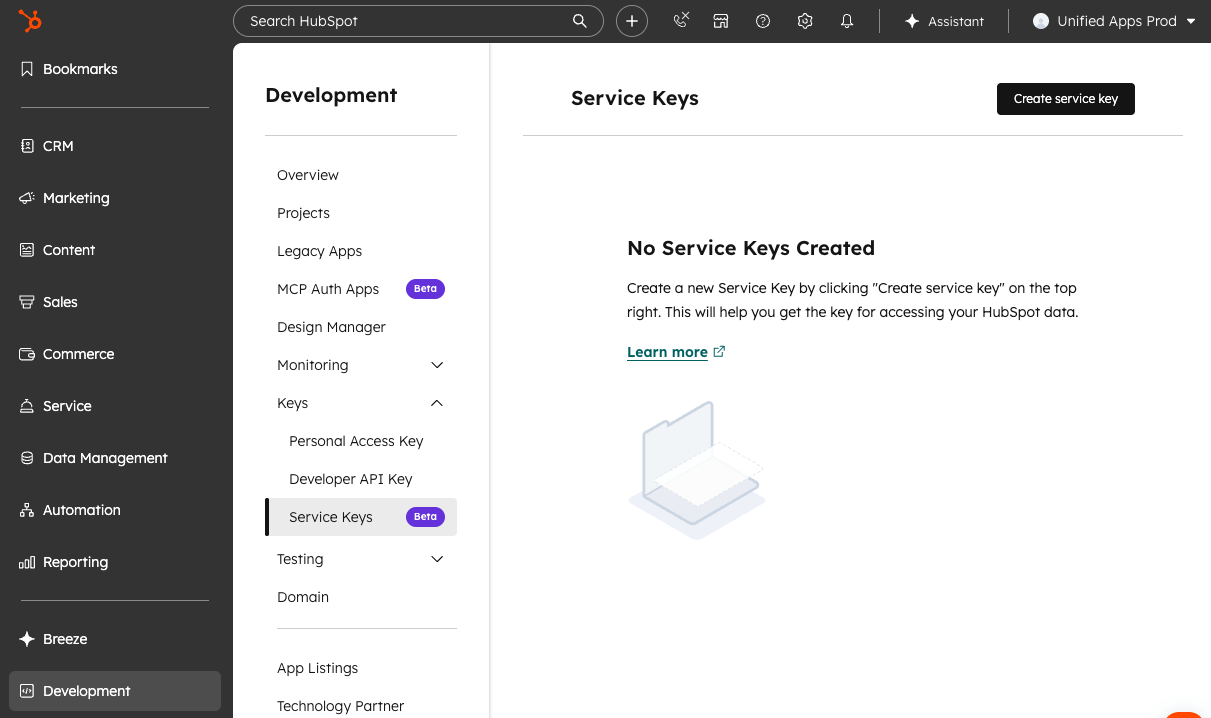
In your HubSpot account, go to Development > Keys > Service Keys. (You can also find Service Keys under Settings > Account Management > Integrations > Service Keys.)
-
Select Create service key.
-
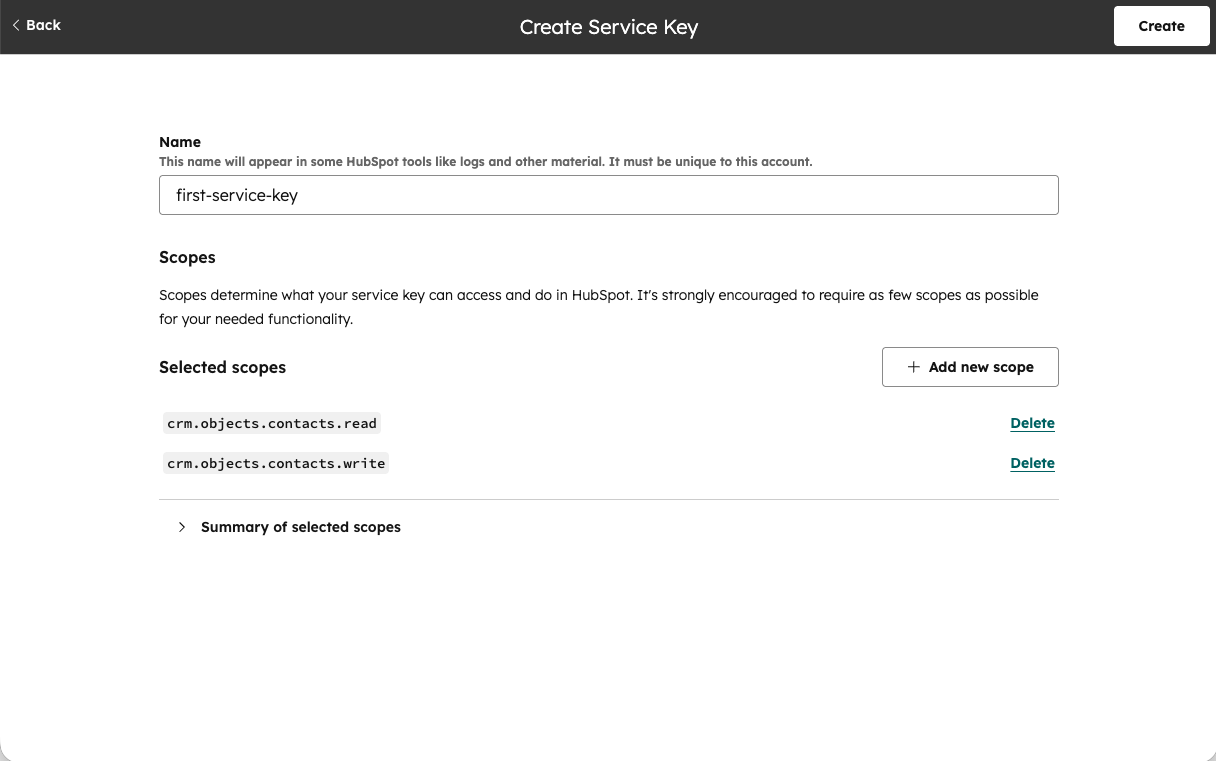
Enter a descriptive Name for your key.
- Select Add new scope and choose the permissions your integration needs. Refer to Required scopes for HubSpot node for a list of recommended scopes.
- Select Update to confirm your scope selections.
- Select Create, then confirm in the dialog.
- Click on the new service key name to navigate to its details page, and select Show to reveal your key.
- Copy the key value using the copy button, and paste it as the App Token in your n8n credential.
Service keys in public beta
Service keys are currently in public beta and subject to change. Refer to HubSpot's Service Keys documentation for the latest information.
Using Developer API key#
To configure this credential, you'll need a HubSpot developer account and:
- A Client ID: Generated once you create a public app.
- A Client Secret: Generated once you create a public app.
- A Developer API Key: Generated from your Developer Apps dashboard.
- An App ID: Generated once you create a public app.
To create the public app and set up the credential:
- Log into your HubSpot app developer account.
- Select Apps from the main navigation bar.
- Select Get HubSpot API key. You may need to select the option to Show key.
- Copy the key and enter it in n8n as the Developer API Key.
- Still on the HubSpot Apps page, select Create app.
- On the App Info tab, add an App name, Description, Logo, and any support contact info you want to provide. Anyone encountering the app would see these.
- Open the Auth tab.
- Copy the App ID and enter it in n8n.
- Copy the Client ID and enter it in n8n.
- Copy the Client Secret and enter it in n8n.
- In the Scopes section, select Add new scope.
- Add all the scopes listed in Required scopes for HubSpot Trigger node to your app.
- Select Update.
- Copy the n8n OAuth Redirect URL and enter it as the Redirect URL in your HubSpot app.
- Select Create app to finish creating the HubSpot app.
Refer to the HubSpot Public Apps documentation for more detailed instructions.
Required scopes for HubSpot Trigger node#
If you're creating an app for use with the HubSpot Trigger node, n8n recommends starting with these scopes:
| Element | Object | Permission | Scope name |
|---|---|---|---|
| n/a | n/a | n/a | oauth |
| CRM | Companies | Read | crm.objects.companies.read |
| CRM | Companies schemas | Read | crm.schemas.companies.read |
| CRM | Contacts | Read | crm.objects.contacts.read |
| CRM | Contacts schemas | Read | crm.schemas.contacts.read |
| CRM | Deals | Read | crm.objects.deals.read |
| CRM | Deals schemas | Read | crm.schemas.deals.read |
Using OAuth2#
Note for n8n Cloud users
Cloud users don't need to provide connection details. Select Connect my account to connect through your browser.
If you're self-hosting n8n, you'll need to configure OAuth2 from scratch by creating a new public app:
- Log into your HubSpot app developer account.
- Select Apps from the main navigation bar.
- Select Create app.
- On the App Info tab, add an App name, Description, Logo, and any support contact info you want to provide. Anyone encountering the app would see these.
- Open the Auth tab.
- Copy the App ID and enter it in n8n.
- Copy the Client ID and enter it in n8n.
- Copy the Client Secret and enter it in n8n.
- In the Scopes section, select Add new scope.
- Add all the scopes listed in Required scopes for HubSpot node to your app.
- Select Update.
- Copy the n8n OAuth Redirect URL and enter it as the Redirect URL in your HubSpot app.
- Select Create app to finish creating the HubSpot app.
Refer to the HubSpot Public Apps documentation for more detailed instructions. If you need more detail on what's happening in the OAuth web flow, refer to the HubSpot Working with OAuth documentation.
Required scopes for HubSpot node#
If you're creating an app for use with the HubSpot node, n8n recommends starting with these scopes:
| Element | Object | Permission | Scope name(s) |
|---|---|---|---|
| n/a | n/a | n/a | oauth |
| n/a | n/a | n/a | forms |
| n/a | n/a | n/a | tickets |
| CRM | Companies | Read Write |
crm.objects.companies.read crm.objects.companies.write |
| CRM | Companies schemas | Read | crm.schemas.companies.read |
| CRM | Contacts schemas | Read | crm.schemas.contacts.read |
| CRM | Contacts | Read Write |
crm.objects.contacts.read crm.objects.contacts.write |
| CRM | Deals | Read Write |
crm.objects.deals.read crm.objects.deals.write |
| CRM | Deals schemas | Read | crm.schemas.deals.read |
| CRM | Owners | Read | crm.objects.owners.read |
| CRM | Lists | Write | crm.lists.write |